
Make a Poster With Readable Text Using Images 2.6
How to get your exact headline, date and prices onto a poster, which settings to use, and how to fix one wrong word.
Last updated: 2026-11-06
Images 2.6 can generate a poster with imagery and text from one prompt. Flare is the model aimed at layouts like posters and product imagery. Put the exact headline, date and prices in your prompt, say where each line goes, and check the result before you print, because text isn’t right on every run. You can start in the generator with Image mode. This guide covers how to write the prompt, which settings to pick, what each run costs and how to correct a mistake.
Write the exact words in your prompt
If you leave the wording open, the model has to make it up. Asking for “a poster for our bake sale” gives it a topic but no text. Write out every word you want on the poster instead.
- Put each line in quotation marks. That separates the words to print from your description of the picture.
- Spell out dates and prices. Write them as they should appear, such as “Nov 2026”, with the currency sign and any decimals. Avoid phrases like “next Saturday” or “the usual price”, which give the model nothing to copy.
- Use capitals on purpose. If the headline should be all capitals, write it that way in the prompt.
- Keep the text short. Every extra word is one more thing to check. A headline, a date and a place are far easier to get right than a full paragraph.
- Say “use only this text”. This tells the model not to add lines of its own.
Treat this as a way to improve your odds, not a promise. Even with the exact wording in your prompt, you still need to read the result.
Describe where each line goes
A poster works when people read it in the right order, so tell the model what that order is. Use plain position words such as top, center and bottom, and size words such as large, medium and small. Then say where the picture sits in relation to the text.
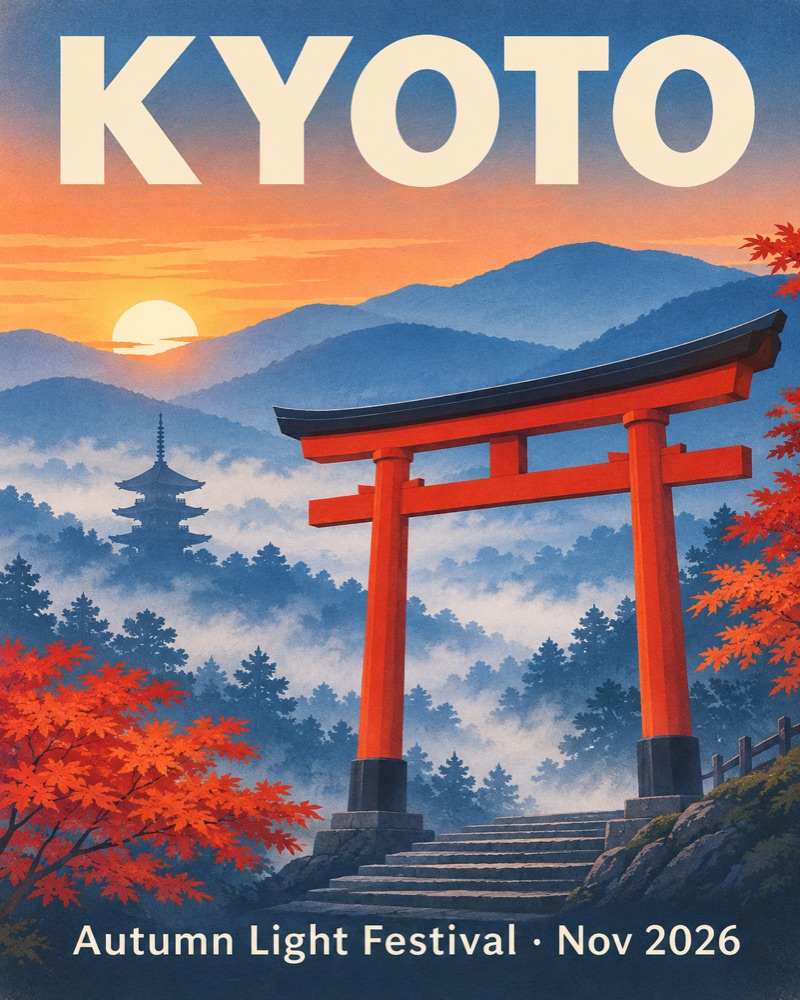
This sample reads from top to bottom: a large headline, the picture, then one line of details. Here is a prompt written to get something like it:
Vintage travel poster with the headline KYOTO in large letters, a red torii gate among autumn maples, and the line Autumn Light Festival · Nov 2026 at the bottom
For your own layout, a few habits help:
- Give each line one place. “The date under the headline” is clearer than “include the date somewhere”.
- Rank the sizes. One large line, one or two medium lines and small print at the bottom gives the eye a route through the poster.
- Ask for clear space. Saying “a clear margin around all text” keeps words away from the edges and from the busiest part of the picture.
- Keep the background calm behind text. A sky, a plain wall or a solid band of color gives letters something simple to sit on.
Which settings to use
Model: Flare. It’s aimed at professional layouts such as posters and product imagery. If you plan to refine one poster through several rounds of edits, Sunburst at Medium or High quality keeps details more consistent. Both cost the same credits, and the Flare vs Sunburst guide compares them.
Quality: High for the final. Use Low while you’re working out the layout, then High for the version you’ll keep.
Planning: High for dense layouts. Planning sets how much the model works out before it draws, and a poster with many lines and strict positions is the kind of job it’s for. A simple headline and picture can use Low or Medium. Planning adds no cost, though OpenAI notes that complex prompts may take up to 2 minutes.
Aspect ratio: 4:5, 3:4 or 2:3. These are the portrait shapes that suit most posters. Choose the one that matches your print size or your frame.
Resolution: 2K or 4K for print. Check the pixel size against what your printer asks for. Here is what 4:5 and 3:4 come out at:
| Ratio | 1K | 2K | 4K |
|---|---|---|---|
| 4:5 | 1024x1280 | 2048x2560 | 2576x3216 |
| 3:4 | 768x1024 | 1536x2048 | 2480x3312 |
What a poster costs
| Run | Settings | Credits |
|---|---|---|
| Draft | 1K, Low | 5 |
| Print final | 2K, High | 18 |
| Large print final | 4K, High | 30 |
A sensible order is to run a few 1K drafts until the layout and wording work, then make your final at 2K or 4K. One thing to keep in mind: the final is a new image, not an enlarged copy of your draft, so read its text again from scratch. Your 20 welcome credits cover 4 drafts at 1K or 1 final at 2K High. A 4K High run needs more than that.
A poster prompt template
Copy this, replace everything in brackets, and take out any line you don’t need. Leave no brackets in the prompt you run, or they may end up on the poster.
A vertical poster for [EVENT OR PRODUCT]. Style: [STYLE, SUCH AS VINTAGE TRAVEL POSTER OR BOLD FLAT DESIGN]. Main image: [WHAT THE PICTURE SHOWS], in the center of the poster. At the top, in large bold letters, the headline “[EXACT HEADLINE]”. Below the image, in medium letters, “[EXACT DATE AND TIME]”. At the bottom, in small letters, “[EXACT PLACE OR PRICE]”. Use only this text and spell it exactly as written. Keep a clear margin around all text.
Example: a charity sale poster
Here’s the template filled in for a charity bake sale. It’s a prompt to start from, not a result we’ve tested. The date, place, price and charity are placeholders for your own details.
A vertical poster for a community charity bake sale. Style: warm, friendly flat illustration in cream, tomato red and deep green. Main image: a long table of cakes, pies and cookies, in the center of the poster. At the top, in large bold letters, the headline “CHARITY BAKE SALE”. Below the image, in medium letters, “[DAY, DATE AND TIME]”. Under that, “[PLACE]”. At the bottom, in small letters, “Everything [PRICE]. All money raised goes to [CHARITY NAME].” Use only this text and spell it exactly as written. Keep a clear margin around all text.
The same structure works for a concert, a shop sale, a school event or a product launch. Change the style line and the picture, and keep the discipline of exact wording in quotation marks.
Fix one wrong word
If the poster is right apart from one word, you don’t have to start again. Edit mode lets you point at the line that needs correcting.
- Download the poster as a PNG.
- In the generator, choose the Edit tab and upload it.
- Choose Match my image so the shape stays the same.
- Use the red brush to mark the line with the mistake.
- Write the correct wording exactly, as in the prompt below.
- Set the same resolution as your poster, check the cost and press Generate.
Change the text in the marked area to “[CORRECT WORDING]”, in the same font, size and color.
With a mark, an edit costs 5, 8 or 14 credits at 1K for Low, Medium or High, 6, 10 or 18 at 2K, and 10, 16 or 30 at 4K. We also ask the model to keep everything else unchanged, but the mark guides the model and isn’t a pixel lock, so other lines can shift. After a fix, read the whole poster again, not only the word you corrected. The photo editing guide explains markup in more depth.
Check spelling, dates and prices before printing
Text isn’t right on every run, and no setting makes it certain. Printing is the expensive step, so do this check first:
- Compare against your source. Read each line beside your original wording, not from memory.
- Check every digit. Go through dates, times, prices and phone numbers one character at a time.
- Check names. Look at people, places, sponsors and the spelling of any charity.
- Zoom in on small print. Short lines at the bottom are the easiest to miss.
- Look for extra text. Make sure nothing appears that you didn’t ask for.
- Ask someone else to read it. A second person often spots what you’ve stopped seeing.
Common questions about posters in Images 2.6
Can I add my own logo?
You can try it in Edit mode. Upload your logo with your prompt and say where it should go. Logos can come out slightly different, so compare the result with the original.
What file do I get?
A PNG, one per run, ready to download. We add no watermark.
Can I sell or print commercially what I make?
Yes. You can use what you make commercially, as long as it follows our terms and OpenAI’s usage policies. You’re responsible for what you create.
Should I use SVG mode for a poster?
Usually not. SVG mode suits logos, icons and flat illustrations. Use Image mode for a poster with a picture and text.
Can a poster move?
GIF mode makes looping animations from a text prompt, in square 512x512 frames. See the GIF maker guide for what it can do, and What Is Images 2.6? for the model as a whole.