
Images 2.6 Flare vs Sunburst
How the two GPT-Image-2.6 models differ, and which to pick for drafts, posters, product shots and repeated edits.
Last updated: 2026-11-06
Pick Flare when you want a quick result or a designed layout such as a poster. Pick Sunburst when you want more detail, or when you’ll edit the same image over several rounds. Both are GPT-Image-2.6 models from OpenAI, they share the same token rates, and on this site they cost the same credits, so you can switch freely.
Flare vs Sunburst at a glance
| Compared on | Flare | Sunburst |
|---|---|---|
| Made for | Speed and professional layouts | More detail and more consistent edits |
| Good fit | Drafts, posters, product imagery | Fine detail, repeated edits |
| What OpenAI says | As little as six seconds at low quality | More consistent edits at medium or high quality |
| Token rates at OpenAI | Same as Sunburst | Same as Flare |
| Credits on this site | Same as Sunburst | Same as Flare |
| Modes on this site | Image, Edit, GIF, SVG | Image, Edit, GIF, SVG |
What Flare is for
GPT-Image-2.6 Flare is the speed model. OpenAI says it can produce an image in as little as six seconds at low quality. That figure is OpenAI’s, and we haven’t measured it on this site. Flare is also aimed at professional layouts like posters and product imagery, so it’s a natural first choice when your image has a headline or a set arrangement of elements.
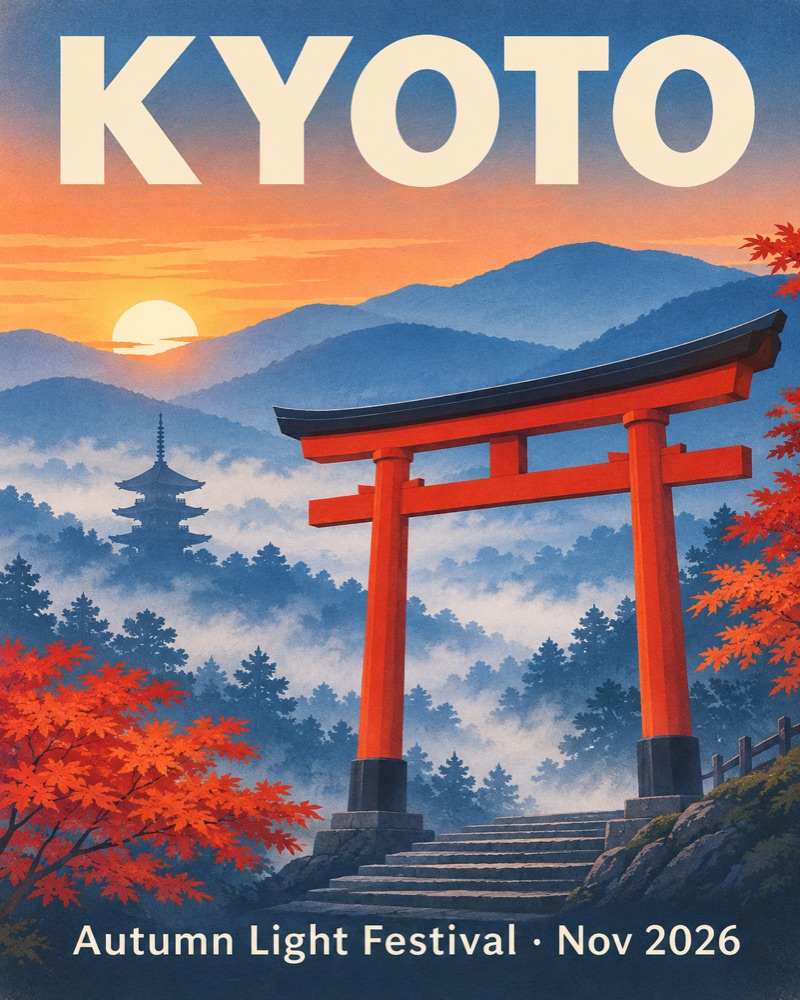
A sample of the kind of layout Flare is aimed at: a travel poster with a headline and a line of smaller text. Check any wording before you use it, because text isn’t right on every run.
What Sunburst is for
GPT-Image-2.6 Sunburst is the detail model. At medium or high quality it gives you more detail and keeps things more consistent from one edit to the next. That matters when a character, a product or a brand detail has to survive several rounds of changes.
Flare or Sunburst: which to pick
- Drafts. Flare at Low quality. When you’re still trying ideas, you want to see a lot of them.
- Posters and layouts with text. Flare. Put the exact wording in your prompt, and raise the quality once the layout works.
- Product shots. Flare covers product imagery well, especially when the shot is part of a layout. Move to Sunburst at Medium or High when the surface detail of the product is the point.
- Repeated edits. Sunburst at Medium or High. It’s the steadier choice when you’ll change one thing, then another, on the same image.
Start with Flare for quick drafts and poster layouts, and keep a Flare result if it already does the job. Choose Sunburst when fine detail matters, or when the image will go through more rounds of edits. Credits are the same either way, so the choice comes down to the result you want.
Example settings for common jobs
These are starting points, and the credits are what each run costs on this site.
| Job | Model | Settings | Credits |
|---|---|---|---|
| Trying several poster ideas | Flare | 1K, Low quality, Low planning | 5 |
| Final poster with a headline | Flare | 2K, High quality, High planning | 18 |
| Product shot for a shop page | Sunburst | 2K, High quality, Medium planning | 18 |
| Changing one marked area of a photo | Sunburst | 1K, Medium quality, Low planning | 8 |
| Large image for print | Sunburst | 4K, High quality, Medium planning | 30 |
How to compare the two models fairly
Change one thing at a time. Keep the prompt, aspect ratio, quality and Planning the same, and switch only the model. A standard 1K run costs 5 credits, so a side-by-side test costs 10. Judge the two results on what the job needs: for a poster, read every word and check the spacing, and for a product, look at edges, labels and surfaces. If you plan to edit the image afterwards, make one small change on each result and see which keeps the rest of the picture steadier.
Does Flare or Sunburst cost more?
Neither. OpenAI charges the same token rates for both, and on this site they cost the same credits. The price here depends on the mode, resolution and quality, not on the model. A plain 1K image costs 5 credits on either model. A 4K image at High costs 30 on either model. A Medium GIF costs 15 on either model. You can see the cost under the Generate button before you run it.
How to use Planning with Flare and Sunburst
Planning is the setting OpenAI calls complexity. It controls how much the model works out before it draws, it works with both models, and it adds no cost.
- Low. Quick edits and simple images.
- Medium. A scene with several elements.
- High. Busy scenes or strict constraints, such as an ad with steps, nutrition facts and a headline.
Planning and model solve different problems. The model decides what the result is aimed at, speed and layout or detail and consistency. Planning decides how carefully the picture is thought through. A fast Flare draft of a simple object can sit on Low, while a dense poster on Flare may want High. A small fix on a Sunburst image usually only needs Low.
OpenAI also notes that complex prompts may take up to 2 minutes, so expect longer waits when a prompt asks for a lot.
Try both
Run the same prompt on each model and compare. Open the generator and sign in with Google to get 20 welcome credits, which covers 4 images at 1K. For more on the release, read What Is Images 2.6?, and if you’re animating something, see the Images 2.6 GIF maker guide.